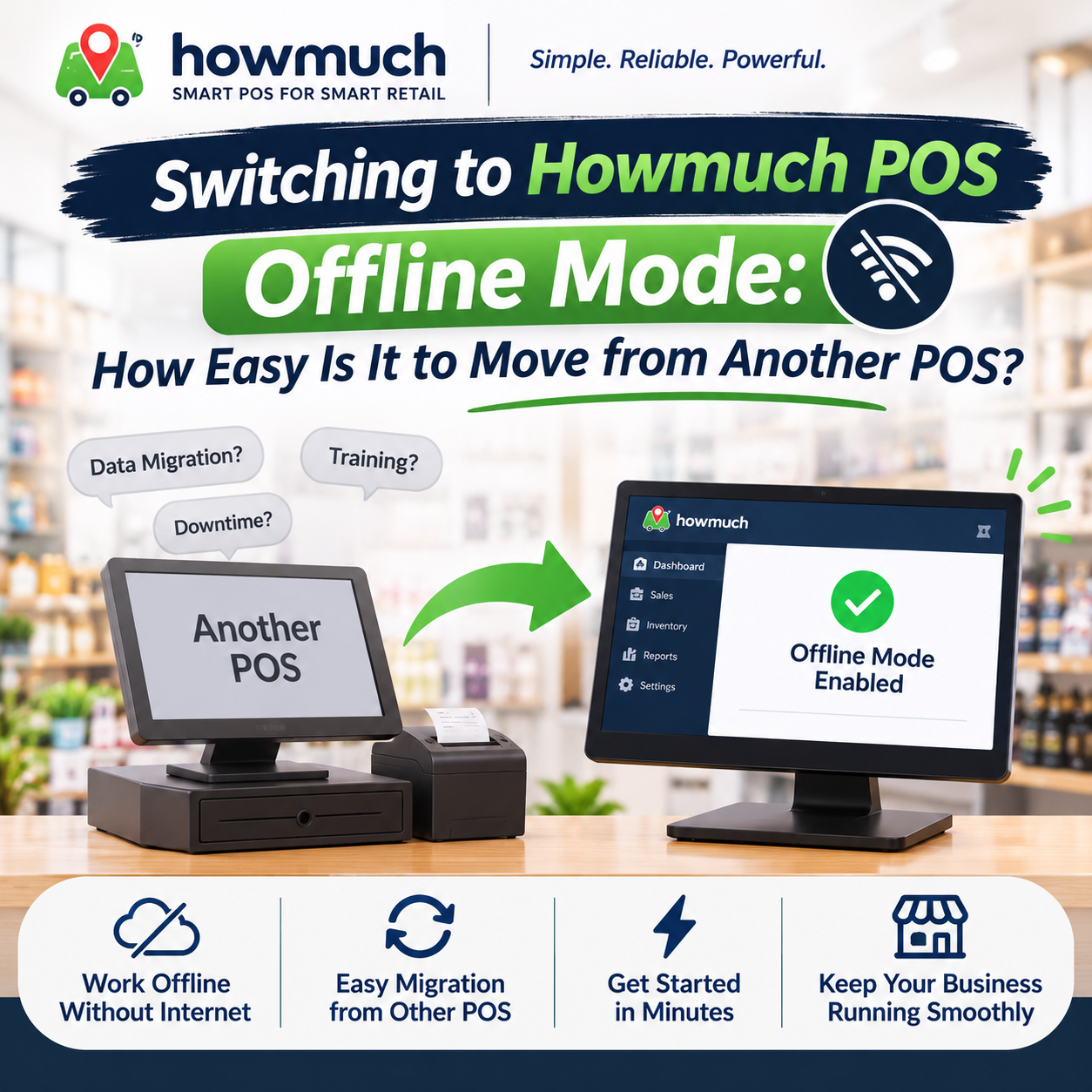
Switching to Howmuch POS Offline Mode: How Easy Is It to Move from Another POS

Most retailers don’t change POS systems on a whim. They change because something keeps getting in the way.
Common reasons include the software being too complicated for new cashiers, rising subscription or maintenance costs, billing stopping when the internet drops, slow inventory and product management, or business data sitting somewhere that is hard to control.
Howmuch POS is a retail POS with a standalone, offline mode. Your store runs on your own computer, and daily selling doesn’t depend on a live connection. This guide explains what switching involves and what to prepare. It also says plainly what Howmuch can and can’t bring over from your old system.
What Switching to Howmuch Offline Mode Means
In standalone mode, your store’s products, stock, sales and settings live on your device. You choose “Standalone/Offline” instead of the cloud option, set up a local store and create a local owner account. No cloud account is needed for supported daily operations.
Switching POS software is different from changing your internet plan. A better connection doesn’t fix a slow or confusing system. Moving to Howmuch means three things: setting up the new system, importing or entering your business data, and training your staff on the new workflow.
One honest caveat: offline doesn’t mean license-free. Each device needs a license — a phone-verified trial, or a purchased plan, key or license file. Activation needs a connection once. After that, the device checks in periodically, and a license file can renew it without internet. If the deadline and grace period pass, new sales stop. Viewing records, exporting and backups keep working.
What to Prepare Before You Switch
Collect these from your current POS:
- Products: names, categories, SKUs, barcodes, variants, units, selling prices, cost prices and tax details.
- Inventory: current quantities and where stock is kept.
- Customers: names, phone numbers, addresses and any balances owed.
- Suppliers: names, contact details and balances you owe.
- Settings: payment methods, staff accounts and roles, tax rules, receipt layout, printer and cash drawer details.
Clean data makes the import smooth. The rest of this guide shows where it pays off.
Step-by-Step: Moving from Another POS to Howmuch
Step 1: Review Your Existing Data
Open your product, stock, customer and supplier lists. Note what’s missing, duplicated or outdated. Decide what you actually need going forward.
Step 2: Export from Your Old POS
Look for an export option in your old software. Howmuch’s product import reads Excel (.xlsx) or CSV files up to 20 MB. Older .xls files aren’t supported, so re-save them as .xlsx or CSV first.
Step 3: Clean the File
Fix duplicate products, wrong barcodes, missing prices and inconsistent names before importing. It takes less time than correcting them afterwards.
Step 4: Set Up Howmuch
Enter your business details and create your categories, units and taxes. Set up payment methods and staff accounts with permissions. Set up taxes first. If your store uses tax categories, imported products need one.
Step 5: Import or Add Products
Howmuch matches your file’s columns automatically, so no template is needed. You review the matches and fix any that are wrong.
- Only product name and selling price are required.
- Optional fields include SKU, barcode, category, unit, tax, brand, cost price, MRP, wholesale price and stock quantity.
- Missing categories and units can be created during import.
- Before anything is added, you see which rows will go in and which won’t, and why. Rejected rows can be downloaded, fixed and imported again.
- Importing the same file twice doesn’t create duplicates.
- Import adds new products only. It doesn’t overwrite existing prices or reset stock.
For small catalogs, Bulk Add lets you type products into a spreadsheet-style grid. Pakistani grocery and pharmacy retailers can also start from a regional starter catalog. It brings product names but no prices or stock, so you set your prices before selling.
Step 6: Configure Opening Stock
Opening stock can come in through the stock quantity column or be entered manually. It should match a physical count taken on switch-over day. Pharmacy and mobile shops can also record batches or serial numbers/IMEIs. After import, Bulk Update lets you adjust prices, stock, categories and tax across many items at once, with a preview before anything changes.
Step 7: Set Up Customers and Suppliers
Customers and suppliers can be imported from a CSV with name, phone and optional email, and the importer flags duplicates. Opening balances are not part of that import. Check them against your records and enter them manually.
Step 8: Configure Printing and Hardware
Set up receipts and your barcode settings. Receipts print through the system print dialog, and thermal (80mm) printing options are available. Test your own printer, scanner and cash drawer in the real store before launch, because hardware varies.
Step 9: Test Before Going Live
Run these checks:
- product search and barcode scanning.
- A sale with a discount and tax.
- Each payment method
- A return and the stock update that follows.
- Receipt printing.
- The reports you rely on.
- A sale with the internet switched off.
Step 10: Go Live
Once your opening stock is verified and the tests pass, start trading. Keep the old POS available for reference.
What Happens to Your Existing Data?
Category |
What it covers |
|---|---|
Can be imported |
Products, prices, tax assignments, opening stock, customer and supplier contact details |
Needs manual setup |
Taxes, payment methods, staff accounts, receipt settings, customer and supplier opening balances |
Stay in the old POS |
Historical sales, purchase history, expenses and past reports |
Not transferable |
Anything the old system won’t export |
Howmuch has no tool for importing another POS’s sales history. Don’t promise yourself a one-click move. Export or print the reports you’ll need for accounts and tax records, and keep the old software accessible for as long as you need those records.
How Easy Is Daily Operation Afterwards?
Here’s what everyday work looks like:
- A cashier makes a sale. They search or scan, add several items and apply fixed or percentage discounts. Tax can be inclusive or exclusive. Unfinished sales can be saved as drafts.
- A customer returns an item. Full and partial returns are supported, and stock updates with them.
- New stock arrives. You record purchases, supplier payments and purchase returns.
- The owner checks the day. Reports cover sales tax, profit margin, low stock, stock movements, purchases, expenses, and customer and supplier balances.
- The internet goes down. Staff keep billing, because the store runs locally.
Supported cash handling includes drawer sessions and cash movements. Staff permissions and a manager passcode control sensitive actions.
Offline isn’t cloud sync. Services that depend on the internet by nature, such as online payment processors, can’t run offline. Cash is the fully local payment method. Cross-store transfers aren’t available in standalone mode. Your data stays on the device and doesn’t automatically upload when connectivity returns. Create encrypted backup archives regularly. Howmuch can remind you, but it doesn’t back up automatically.
Common Migration Challenges and How to Avoid Them
Challenge |
Practical tip |
|---|---|
Duplicate or incorrect products |
Clean the file, then use the import preview |
Missing barcodes |
Fill them in before importing |
Wrong opening stock |
Count shelves on switch-over day |
Incorrect tax setup |
Create tax categories first and test a sale |
Missing customer balances |
Enter them manually and verify |
Printer problems |
Test printing before go-live |
Staff unfamiliarity |
Train on a practice store first |
Incomplete exports |
Check row counts against your old system |
Missing history |
Keep the old POS accessible |
How Long Does Switching Take?
There’s no fixed timeline and it depends on:
- The number of products, customers and suppliers.
- How clean your data is.
- The number of stores and counters.
- Hardware setup
- Staff training needs.
- Howmuch can be imported versus entered by hand.
A small shop with tidy data needs less preparation than a large retailer with complex inventory.
Why Retailers Choose Howmuch Standalone
Retailers choose it for:
- local billing without depending on a connection.
- Product, stock and purchase management in one place.
- Customer and supplier records.
- Built-in reports, and control over their own store data through local settings and permissions.
Example: Switching a Grocery Store
A grocery store has 2,000 products, existing barcodes, customer and supplier details, current stock and one counter.
- Prepare: Export products, stock, customers and suppliers from the old POS as Excel or CSV files.
- Clean: Remove duplicates, fill in missing barcodes and prices, and confirm tax values.
- Set up: Create categories, units, taxes, payment methods and staff accounts in Howmuch.
- Import: Import the product file, check the column matches, review the preview and fix rejected rows.
- Verify stock: Do a physical count on switch-over day and compare it with the imported quantities.
- Add contacts: Import customers and suppliers, then enter any balances by hand.
- Hardware: Configure receipts and test the printer, scanner and cash drawer.
- Test: Run sample sales, returns and an offline sale.
- Go live: Start trading the next morning. Keep the old POS for history.
The exact import process depends on the file formats and fields Howmuch supports.
Conclusion
Switching POS software doesn’t have to be complicated. Prepare your data, verify your inventory and test every workflow before opening day. Howmuch POS is a practical retail option for businesses that want offline, standalone operation, with clear import tools and honest limits. Before you commit, review your existing data, list what you need to carry over, and check the supported import options.ed
- Sales and returns tested
- Offline workflow tested
- Staff trained
- Device license activated
0 Comments
Choosing the Best Mobile POS System for Small Businesses