Howmuch POS User Device Features: Manage Your Retail POS Devices with Ease

A busy retail store often has multiple checkout counters, shared terminals, and staff working different shifts. Knowing which POS device is in use, which employee is signed in, and how each terminal is performing can make day-to-day store management much smoother.
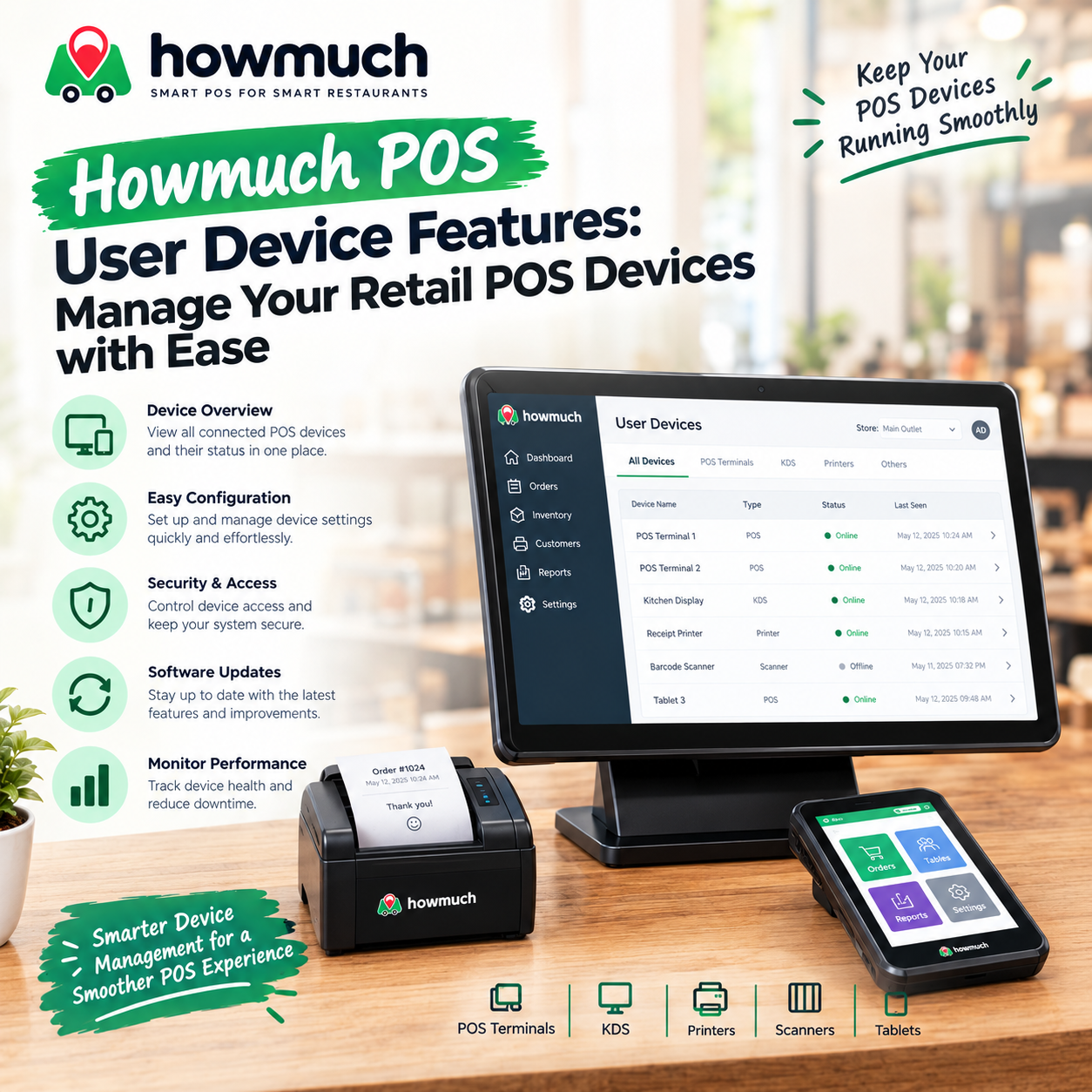
Howmuch Retail POS includes a User Devices feature designed to help businesses organize the devices connected to their POS accounts. Store teams can assign recognizable names to devices, review associated users and activity, check device status, and perform useful actions all from one place.
What Is POS Device Management?
POS device management means keeping track of the terminals and other devices used to access a retail POS system. A device record can represent a checkout computer, tablet, or any other supported device running Howmuch POS.
This helps answer practical questions such as:
- Which terminal is used at the main checkout?
- Which user is currently associated with a device?
- When was the device last active?
- How many completed orders and sales are linked to it?
In Howmuch POS, device records are linked to user accounts and stores, giving businesses a clear way to organize terminals and review device-related activity alongside sales.
How User Devices Work in Howmuch POS
When a POS device registers with Howmuch, the system records key details such as device name, platform, app, and software version. A unique device identifier helps distinguish one terminal from another. The POS app creates and retains this identifier so the device can be recognized again.
The user relationship is based on sign-in. When someone signs in on a device, Howmuch associates that device with the signed-in user. When the user signs out, the association is cleared. This is helpful for understanding who was using a terminal, though managers cannot manually reassign users from the device profile.
Devices can also be given custom names and descriptions (for example, “Front Checkout” or “Express Counter”) so they are easy to identify in the device list. Device names can be updated anytime through POS settings.
What Store Managers Can See
The User Devices section allows authorized users to view and search device records. Depending on permissions, managers can review:
- Device name and description
- Device identifier and platform/type
- POS app and software version
- Enabled or disabled status
- Associated user
- Registration and last-update times
- Store association
- Completed orders, cancelled orders, and sales totals
Managers can search by device name, identifier, user name, or registration date. A performance dashboard summarizes sales and order activity by device and shows recent orders, sign-ins, and synchronization history. Reports can also be exported and include details such as associated user, store location, software version, and last update.
The dashboard labels “Online,” “Recently active,” and “Offline” are based on the last update time of the device record. These are useful activity indicators, not live GPS tracking or real-time hardware monitoring.
Naming and Organizing Multiple Checkout Counters
Clear naming makes device management far more useful, especially in stores with several terminals. Managers can use labels such as:
- Main Counter
- Returns Desk
- Second Floor Register
- Express Lane
Adding a short description further clarifies where each device is used. Combined with store associations, these labels make it easy to distinguish devices when reviewing sales, checking recent activity, or selecting records for bulk actions.
Note that User Devices is not a staffing scheduler or shift-assignment tool. It simply connects device records with the user who is signed in and gives authorized teams better visibility.
Device Status and Available Actions
Each device can be marked as enabled or disabled. This status is separate from the “Online / Offline” activity labels. A disabled device is not the same as an offline device.
Authorized users can also perform bulk actions on selected devices, such as:
- Request log out
- Lock or unlock
- Clear or synchronize data
- Post data
- Force an update
These actions are sent to registered devices. They should not be treated as guaranteed remote control or live hardware monitoring.
Removing a device is also possible, though Howmuch protects order history — removal may be blocked if the device is linked to shipped orders that need to remain connected to their records.
Permissions and Store-Level Access
Access to device records and actions depends on the user’s role and store permissions. Device management is scoped to the stores a user is allowed to access. Device reporting has its own permission, so not every POS user automatically has access to reports or management tools.
This creates a clear division of responsibilities: staff can use the POS under their own accounts, while owners and authorized managers handle device organization, profile updates, and available actions.
Real Retail Examples
Supermarkets & Grocery Stores:
Name terminals “Checkout 1,” “Checkout 2,” and “Express Lane.” Use the dashboard and reports to compare completed orders and sales across each terminal.
Convenience Stores:
Use simple labels like “Front Counter” and “Back Counter” so staff can quickly identify the correct device.
Clothing Stores:
Name one terminal “Main Till” and another “Returns Desk.” Reviewing device activity and user associations helps managers see where transactions are coming from.
Electronics Stores:
Use descriptive names for checkout points across different departments and review device-related sales without relying on technical device IDs.
These examples rely only on the naming, user association, store context, activity indicators, and reporting features available in Howmuch.
A Clearer View of Your Retail POS Terminals
Howmuch User Devices brings device identity, signed-in user context, store information, and sales activity into one convenient place. For retailers with multiple checkout counters, clear names and device reports make it much easier to understand which terminals are in use and review the activity recorded against them.
By combining practical device organization with existing user management, Howmuch Retail POS helps store teams keep checkout operations clearer and more organized whether you run a single counter or a busy multi-register store.
0 Comments
Choosing the Best Mobile POS System for Small Businesses