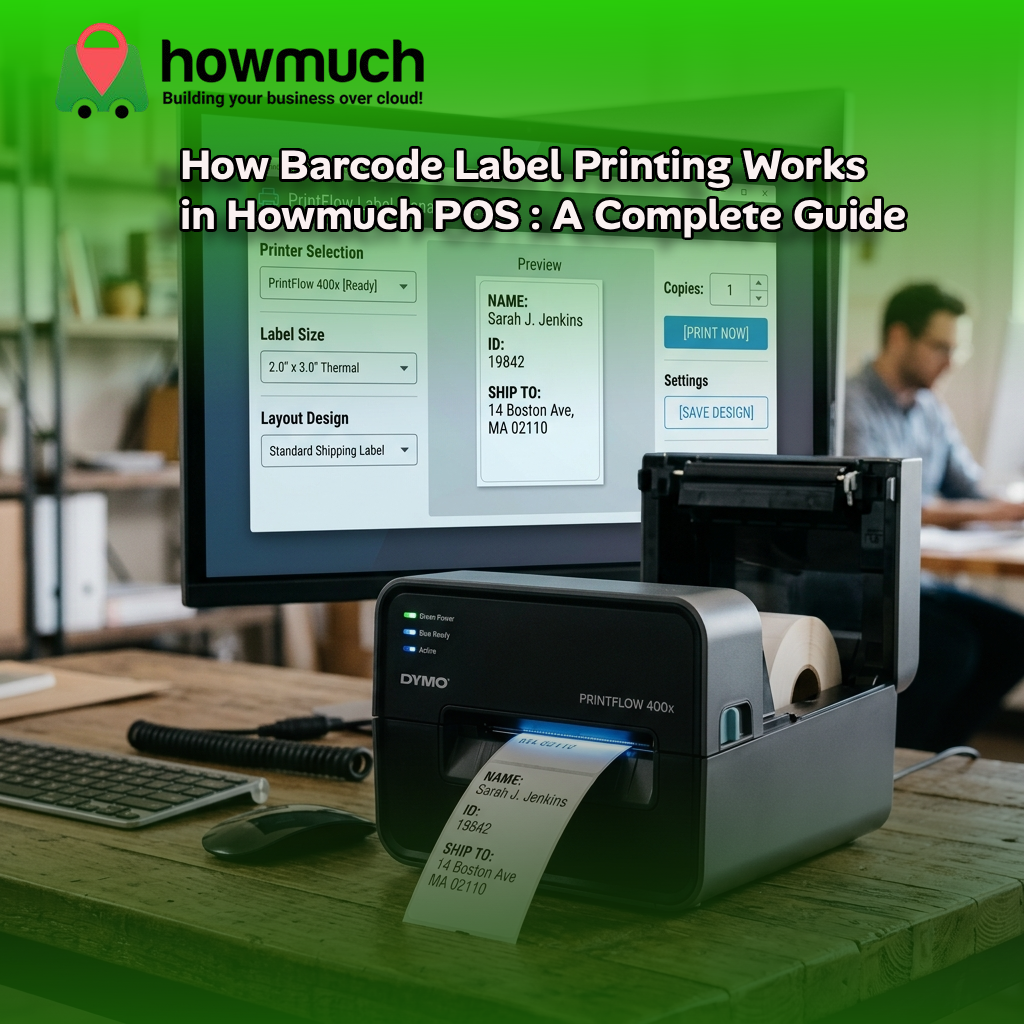
How Barcode Label Printing Works in Howmuch POS : A Complete Guide

How Barcode Label Printing Works in Howmuch POS : A Complete Guide
Howmuch POS includes a built-in barcode label printing system that lets retailers configure thermal printers, choose from six label layouts, and print product labels directly from their store inventory all without relying on external APIs or cloud services. It supports ZPL, EPL1, EPL2, and TSPL printer languages and runs entirely within the local Electron application.
Labeling products consistently and accurately is one of those tasks that seems simple until it isn't. A mismatched label size, an unsupported printer language, or a layout that cuts off critical product information can slow down your entire operation. For retail businesses managing hundreds or thousands of SKUs, those small inefficiencies add up fast.
Howmuch POS addresses this åwith a fully integrated barcode label printing system built directly into the point-of-sale application. No third-party software, no cloud dependency, no workarounds. Everything runs locally, giving your team full control over how labels are configured, previewed, and printed.
This guide covers how the label printer system works, what configuration options are available, and how to get the most out of each feature.
What Is the Howmuch POS Label Printer System?
The Howmuch POS label printer system is a local, Electron-based printing module that allows retail store users to design, configure, and print product barcode labels using thermal label printers. The entire process from printer selection to label output happens within the application, with no reliance on external APIs or database connections.
This architecture keeps printing fast, reliable, and operational even in environments with limited or unstable internet connectivity a common reality for many small and medium retailers in markets like Pakistan, Saudi Arabia, and beyond.
How Do You Configure the Label Printer in Howmuch POS?
Configuration is managed through a dedicated barcode printer settings page within the application. Users with the appropriate permissions can access this page and set up their printer in a few straightforward steps.
Selecting a Printer and Printer Language
Howmuch POS automatically detects USB printers connected to the system and presents them in a dropdown selector. Once you've selected a printer, you'll choose the printer language that matches your hardware.
Supported printer command languages include:
- ZPL (Zebra Programming Language) — widely used with Zebra brand thermal printers
- EPL1 and EPL2 — earlier Eltron printer languages, still common in many retail setups
- TSPL (TSC Programming Language) — used with TSC thermal label printers
Selecting the correct language ensures the application generates compatible command sequences for your specific printer model. Choosing the wrong language is one of the most common reasons labels print incorrectly or not at all so this step matters.
Choosing a Label Size
Six standard label sizes are available out of the box, ranging from 1.5 × 1 inches up to 4 × 2 inches. These cover the most common thermal label formats used in retail environments.
If your operation requires a non-standard size, Howmuch POS lets you create and save custom label sizes through the global configuration interface. Custom sizes are stored locally alongside your other settings and remain available across sessions.
Selecting a Label Layout
This is where retailers can tailor labels to their specific business type. Six layout templates are available:
- Default layout — displays product name, price, SKU, and barcode
- Name and barcode only — omits price for workflows where pricing isn't label-based
- Price and barcode only — removes the product name for a cleaner, minimal look
- SKU and barcode only — the most minimal option, useful for internal stock management
- Bookshop layout — includes store name, logo, address, QR code, and full product details
- Store-branded layout — displays store name alongside product information
The bookshop layout is particularly well-suited for retailers who want branded, information-rich labels especially useful for specialty stores or gift shops where the label itself serves as part of the customer experience.
What Does the Label Printing Process Look Like Step by Step?
Once configuration is complete, the printing workflow is designed to be fast and error-resistant.
Step 1 — Product Selection: Navigate to the barcode printing section and search for products from your store inventory. The search interface allows quick lookup by product name, SKU, or barcode.
Step 2 — Layout Configuration: Before printing, confirm your printer selection, language, label size, and layout. You can also customize the layout for individual products at this stage if needed.
Step 3 — Preview: A visual preview displays exactly how the label will appear when printed. This step catches layout issues before they become a wasted print run.
Step 4 — Print Execution: Howmuch POS generates the appropriate command sequence based on your selected language and label size, then sends it directly to the printer via the operating system's printer subsystem.
åThroughout this process, a print lock prevents concurrent jobs from being sent simultaneously eliminating the printer conflicts that can occur when multiple staff members try to print at the same time.
What Advanced Features Does the Label Printer Include?
Beyond standard label printing, the system includes several capabilities that support more specialized retail use cases.
Logo and QR Code Support: For layouts like the bookshop template, the application can embed store logos and QR codes directly onto labels. Image data is converted into printer-compatible formats automatically.
PDF Export: Rather than sending labels directly to a thermal printer, you can generate labels as a PDF document. The output is formatted as an A4 page with a grid layout of labels useful for printing on standard office printers or archiving label designs.
Validation Before Printing: The system checks that a printer is properly configured before any print operation begins. If the setup is incomplete, a clear error message is displayed rather than letting a failed job slip through silently.
Persistent Settings: All printer preferences—including printer name, language, label size, and custom sizes are saved locally within the Electron application. These settings persist across logout and login sessions, so your team doesn't need to reconfigure the printer every time they start a new shift.
How Does Howmuch POS Handle Different Printer Integration Modes?
The application supports two integration methods depending on how it's being used:
- Electron mode: Direct system printer access for raw command printing. This is the standard mode for most retail deployments and offers the most reliable performance.
- Web mode: A printing bridge service that communicates with locally installed printer software. This mode extends printing capability to browser-based access scenarios.
For most small to medium retail operations, Electron mode is the recommended approach it's faster, more reliable, and doesn't require additional software configuration.
Getting the Most Out of Barcode Label Printing in Your Store
A well-configured label printing setup reduces the time staff spend troubleshooting, minimizes label waste, and keeps your shelves consistently and professionally labeled. Here are a few practical recommendations:
- Match your layout to your product type: High-volume general retail works well with the default layout. Specialty or boutique stores benefit from branded layouts that reinforce the store identity.
- Use the preview every time: It takes seconds and prevents wasted labels from layout misconfigurations.
- Create custom label sizes early: If your printer uses a non-standard size, configure and save it during initial setup so it's always available.
- Assign printer configuration to a designated user: Limiting who can change printer settings reduces the risk of accidental misconfigurations during peak trade hours.
Make Label Printing One Less Thing to Worry About
Retail operations run on precision and label printing is no exception. Howmuch POS gives you the tools to configure, preview, and print barcode labels with full control over layout, size, and printer language, all from within the same platform you use to manage your inventory, sales, and reporting.
Ready to see it in action? Request a free demo and explore how Howmuch POS can streamline your store operations from the shelf to the checkout.
Frequently Asked Questions
What thermal printer brands are compatible with Howmuch POS label printing?
Howmuch POS supports printers that use ZPL, EPL1, EPL2, or TSPL command languages. This covers a wide range of thermal printer brands, including Zebra (ZPL), legacy Eltron models (EPL1/EPL2), and TSC printers (TSPL). Check your printer's documentation to confirm which language it supports before configuring the system.
Can I print custom-sized labels in Howmuch POS?
Yes. In addition to the standard label sizes (ranging from 1.5 × 1 inches to 4 × 2 inches), Howmuch POS allows you to create and save custom label sizes through the global configuration interface. Custom sizes are stored locally and persist across user sessions.
Does the label printing system require an internet connection to work?
No. The label printer system in Howmuch POS operates entirely locally within the Electron application. It does not rely on external APIs or cloud services, making it fully functional even in environments with limited or no internet connectivity.
What happens if I try to print without a printer configured?
Howmuch POS validates your printer setup before executing any print job. If a printer is not properly configured, the system displays an error message and prevents the print operation from proceeding. This reduces wasted labels and helps staff identify setup issues quickly.
Can I print labels as a PDF instead of sending them directly to a thermal printer?
Yes. The PDF export feature allows you to generate labels as an A4 document with a grid layout. This is useful for printing on standard office printers or when you want to archive a label design before committing to a full print run.
0 Comments
Choosing the Best Mobile POS System for Small Businesses