Complete Guide to Tax Settings in Howmuch POS

Complete Guide to Tax Settings in the Howmuch POS
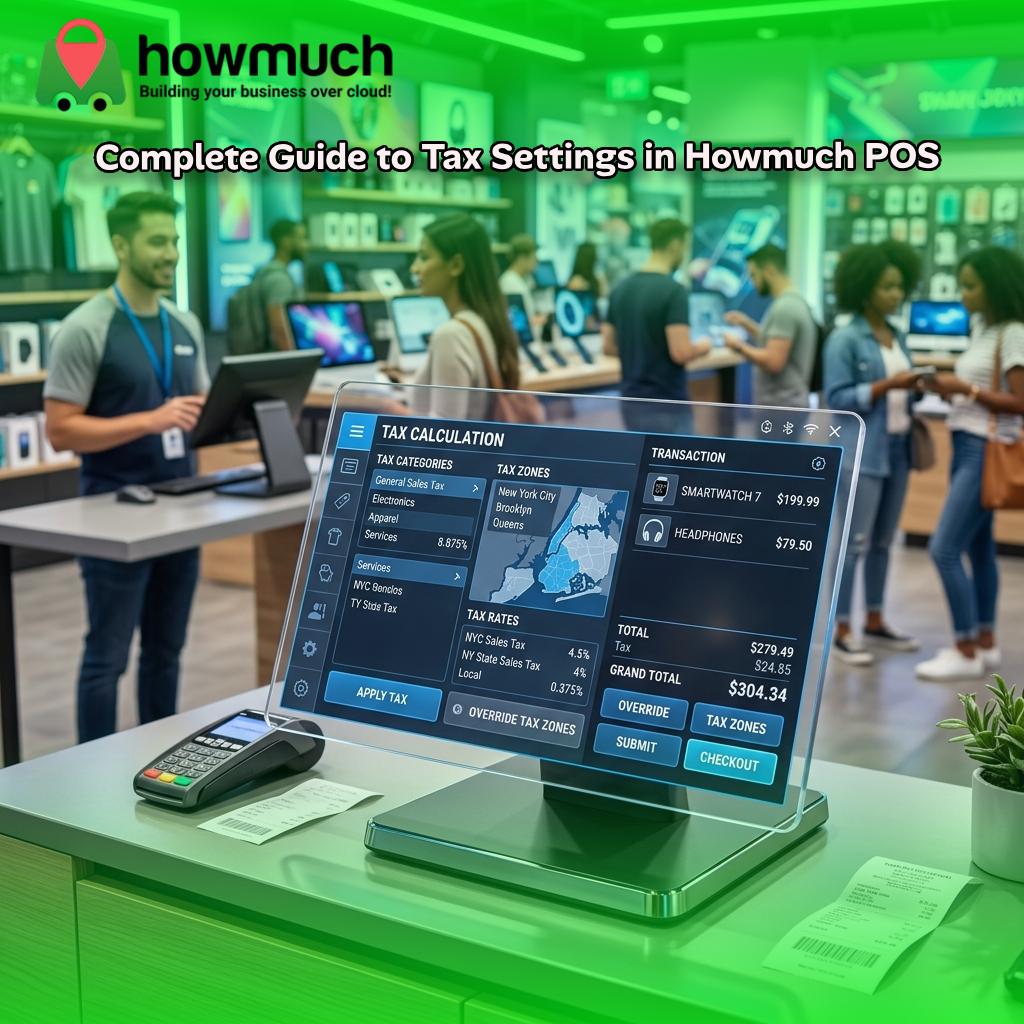
Howmuch POS calculates tax automatically by combining three building blocks tax categories, tax zones, and tax rates. When a sale happens, the system identifies the order's zone, reads each item's tax category, finds matching rates, and applies the correct tax. Staff don't touch a thing at checkout.
Tax is one of those tasks that quietly drains time and invites mistakes. Punch in the wrong rate, forget a regional rule, or skip a line on a receipt, and you can end up with unhappy customers or compliance headaches. For small and medium retailers juggling busy weekends and holiday rushes, manual tax handling simply doesn't scale.
Howmuch POS removes that burden. Once you set up your tax rules in Shop Admin, every POS terminal in your store applies them consistently on every sale, automatically. No mental math at the counter. No second guessing which rate applies to which product.
This guide breaks down exactly how the tax engine works inside Howmuch POS, from the core building blocks to receipts and regulatory reporting. You'll learn how to configure each piece, how the system decides what to charge, and what the platform does (and doesn't) support. By the end, you'll know how to set up tax once and trust it to run correctly across your entire operation.
What are the three building blocks of tax in Howmuch POS?
Howmuch POS builds every tax calculation from three configurable parts. Understanding each one makes the whole system easy to manage.
- Tax categories classify what you're selling. A category is a label that groups products taxed the same way for example, "Standard Rate," "Reduced Rate," or "Zero Rated."
- Tax zones define where a rate applies, based on geography. A zone can cover entire countries or specific states and cities.
- Tax rates tie a category and a zone together with an actual percentage and a set of display rules.
All three are managed centrally in Shop Admin under your store's tax settings. Configure them once, and they apply across every terminal for that store. This central control is what keeps your tax handling accurate and consistent, even as you add staff or expand to new locations.
How do tax categories classify your products?
A tax category is a label used to group products that should be taxed the same way. Each category belongs to a single store and includes a name, an optional description, and a tax code used for regulatory or compliance classification.
You can mark one category as the store default, which acts as a fallback. Category names must be unique within a store, and they can be translated for businesses operating in more than one language a practical feature for retailers serving multilingual markets across Pakistan, Saudi Arabia, the USA, and the UK.
To create one, head to your store's tax settings screen in Shop Admin, give the category a name and a tax code, and save. That's it.
How do tax zones determine where a rate applies?
A tax zone defines the geographic scope in which a tax rate is valid. Each zone is made up of one or more members either entire countries or specific states and cities and is assigned a "kind" that describes whether its members are countries or states/cities. Every zone has a name and description, and you can designate one zone as your default.
Here's the part that matters most at the point of sale: how the system decides which zone an order belongs to.
- For deliveries, Howmuch POS checks the customer's shipping or billing address, depending on how your store is configured.
- For pickup sales made and collected in-store, the system uses your store's own physical address, since there's no separate delivery address involved.
- If no zone matches, the system uses your designated default zone. If you haven't set a default, it falls back to the last available zone configured for the store.
This logic means a customer buying in person and a customer ordering for delivery can each be taxed according to the correct geography without anyone calculating it by hand.
How do tax rates connect categories and zones?
A tax rate is the actual percentage charged, and it's the link between a tax category and a tax zone. Each rate includes:
- A name used to identify and display the rate.
- An amount, expressed as a percentage.
- The tax zone it applies to.
- The tax category it applies to.
- A setting for whether the rate is already included in the displayed price or added on top at the time of sale.
- A setting for whether the rate should be shown on receipts and labels.
You create and edit rates from the tax settings screen. Select the zone and category from dropdown lists, enter the percentage, and choose your display options.
A single category can have more than one rate tied to it, and Howmuch POS supports applying multiple rates to the same line item at once. When that happens, rates marked "included in price" are calculated by working backward from the displayed price, while additional rates not included in the price are calculated on top of the pre-tax amount and added to what the customer pays.
What's the difference between price-inclusive and price-exclusive tax?
Whether tax is baked into the displayed price or added at checkout is controlled per tax rate not as a single global switch for the whole store. This gives you precise control.
- Price-inclusive: The price the customer sees already contains the tax. The system works out how much of that price is pre-tax and how much is tax, without changing the total paid.
- Price-exclusive: The displayed price is the pre-tax amount, and the tax is calculated and added on top, increasing the final total at checkout.
Because the setting lives on each rate, a single product can carry one rate included in its price and another added on top. Howmuch POS tracks both the included portion and the additional portion separately on every line item and on the order as a whole. That separation keeps your records clean and your totals accurate.
How do you assign tax to your products?
Tax is assigned at the level of a specific store's variant of a product your store's own listing of a particular variant rather than to the product in general. In the product/variant edit screen in Shop Admin, you simply pick a tax category from a dropdown of your store's available categories.
When an item lands on an order, the system automatically decides which category applies, in this order of priority:
- If your store's variant has a tax category assigned directly, that category is used.
- If the order is fulfilled through a virtual supplier arrangement, the category from the originating supplier's store-variant is used.
- Otherwise, the category from the underlying product variant is used as a fallback.
This automation happens the moment an item is added to the order, so staff never need to pick a category mid-sale. It's all determined by how you configured the product in advance.
One note for stores with tax invoice numbering enabled (relevant to certain regulatory integrations): a tax category is required on new store variants before they can be used, ensuring every taxable item has a category to match against.
How does Howmuch POS calculate tax on an order?
Once a line item has a tax category and the order's zone is determined, the system searches for every tax rate belonging to your store that matches both the order's zone and the item's category. For each matching rate, a tax adjustment is created and attached to that line item and to shipping charges where a rate applies.
Each adjustment records the rate that produced it and whether that rate is included in the price or added on top. The order then keeps running totals of:
- The pre-tax amount for each line item.
- The portion of tax already included in the displayed price.
- The portion of tax added on top of the pre-tax amount.
These figures are tracked per line item and summed at the order level, so the final total reflects every applicable rate regardless of how each one is configured. If items have discounts or other adjustments, the system distinguishes between taxable and non-taxable adjustments, so tax is calculated against the correct net amount.
When multiple rates apply to the same item, all relevant rates are applied together: included rates calculated from the pre-tax base, additional rates layered on top.
How can you control the way tax appears on receipts?
How tax shows up on a printed or digital receipt is fully configurable per store, through the receipt settings screen in Shop Admin. Separate toggles control what appears at the line-item level versus the order-totals level.
At the line-item level, you can choose to show:
- The pre-tax amount for each item, with a customizable label.
- The tax rate percentage applied to each item, with a customizable label.
- The tax amount charged on each item, with a customizable label (shown by default).
At the order-totals level, you can choose to show:
- The combined tax amount across all items, with a customizable label.
- The total tax for the entire order, with a customizable label (shown by default).
You can also print receipts in a simplified tax invoice format with its own heading, and choose whether to include a commercial registration number. Best of all, every setting is previewed live in Shop Admin using sample data, so you see exactly how your receipt will look before applying changes to real receipts at the POS.
How does Howmuch POS support tax authority and regulatory reporting?
For stores operating under specific national tax-reporting regimes, Howmuch POS lets you configure a tax authority integration as part of your tax settings. Select the framework you report under, and the settings screen reveals the relevant fields registration numbers, identification numbers, and the reporting or compliance toggles that regime requires.
Depending on the authority, you can also configure whether tax invoice numbers are generated, whether those numbers are printed alone or combined with other receipt content, and whether extra debug information about tax processing is captured for troubleshooting.
These regulatory settings sit entirely separate from the core category/zone/rate engine. The core engine calculates how much tax is charged; the tax authority settings control how that sale is reported, numbered, and documented for compliance with a specific country's requirements.
Set up tax once and let Howmuch POS do the rest
The real value of the Howmuch POS tax engine is reliability. You configure your zones, categories, and rates once in Shop Admin, assign categories to your products, and the system handles every calculation at the point of sale accurately, consistently, and without slowing down your staff.
To get started, map out your tax requirements: list the product classifications you sell, the geographic areas you operate in, and the percentages each combination requires. Then build them in Shop Admin in the order laid out in this guide zones and categories first, then rates, then product assignments. Finish by configuring your receipt display and, if needed, your tax authority integration.
If you'd like to see how Howmuch POS streamlines tax alongside inventory, billing, and reporting, start your free trial and configure your first tax setup in minutes.
Frequently asked questions
Does Howmuch POS calculate tax automatically at the point of sale?
Yes. Once you configure tax zones, categories, and rates in Shop Admin and assign categories to your products, Howmuch POS determines the correct zone, reads each item's category, finds matching rates, and applies tax automatically. Staff don't perform any manual tax steps during a sale.
How does Howmuch POS decide which tax zone applies to an order?
For deliveries, the system uses the customer's shipping or billing address, depending on your store's configuration. For pickup sales collected in-store, it uses your store's own physical address. If no zone matches, it uses your default zone, or the last configured zone if no default is set.
Can a single product have both included and added-on tax?
Yes. Because price-inclusive versus price-exclusive is set per tax rate, one product can carry a rate that's included in its displayed price and another that's added on top. Howmuch POS tracks the included portion and the additional portion separately on every line item and on the order.
Does Howmuch POS support tax-exempt customers?
No. There is no tax-exempt customer or order option. Any line item with a tax category will be taxed if a matching rate exists for the order's zone. The platform does not offer an override to skip tax for a specific customer or transaction.
Can I control what tax details appear on receipts?
Yes. Through the receipt settings screen in Shop Admin, you can toggle tax details at both the line-item and order-totals levels, customize labels, use a simplified tax invoice format, and include a commercial registration number. A live preview shows exactly how the receipt will look before you save.
Does one tax setup work across multiple stores?
No. Tax categories, zones, and rates are configured per store. There's no single setup that automatically spans multiple stores each store maintains and applies its own tax configuration independently.
0 Comments
Choosing the Best Mobile POS System for Small Businesses