Complete Guide to Item Sales Report in HowMuch POS

Complete Guide to Item Sales Report in HowMuch POS
The HowMuch POS Item Sales Report gives store operators a detailed breakdown of every product sold within a selected time period. It aggregates sales by product variant, excludes returns and unpaid orders, and supports export via PDF, CSV, thermal print, and email making it the go-to tool for product-level sales analysis.
Running a retail store means making decisions every day about stock, pricing, staffing, and promotions. But good decisions require good data. The HowMuch POS Item Sales Report puts that data at your fingertips, giving you a clear, accurate view of exactly what's selling, how much of it moved, and how much revenue it generated.
This guide walks you through everything you need to know about the report: how to access it, how to configure it, what the numbers mean, and how to share it with your team.
What Is the HowMuch POS Item Sales Report?
The Item Sales Report is a built-in analytics tool within the HowMuch POS system. Its primary function is to consolidate all completed, paid transactions within a selected date range into a per-product summary. Rather than reviewing individual orders one by one, you get a unified view of every product variant that was sold how many units moved and how much revenue each one generated.
This makes the report especially valuable for product-level performance reviews, inventory planning, and identifying your top-selling items at a glance.
Who Can Access the Item Sales Report?
Access to the Item Sales Report is controlled by role-based permissions within the HowMuch POS system. Only users whose assigned role includes the "allow sales report" permission can view the report. If a logged-in user does not have this permission, the system displays a permission denied message and no data is shown.
This permission structure ensures sensitive sales data stays visible only to the right people store managers, owners, and authorized staff.
How to Filter and Configure the Report
Before the report generates any data, you need to set two key filters:
Store Selection
Use the dropdown at the top of the report to choose which store's data you want to analyze. If your account is linked to only one store, it is automatically selected. Each store pulls data from its own local database.
Date and Time Range
The report includes two date-time pickers a "From" date and a "To" date. These allow precise filtering, down to the exact hour and minute. This is particularly useful for shift-based reporting, where you only want to see sales from a specific window of time.
A few important rules apply:
- The "From" date cannot be later than the "To" date
- Neither date can be set to a future date
- By default, the report covers the current day from midnight to end of day
What Data Does the Report Include?
The Item Sales Report draws exclusively from the local SQLite database on the device. It retrieves orders that are in a completed or synced state and have been marked as paid. Only orders whose completion timestamp falls within the selected date range are included.
Pending, draft, and unpaid orders are excluded entirely, which ensures the report reflects only finalized revenue.
For each qualifying order, the system reads:
- All line items
- Applied discounts
- Tax amounts
- Payment methods
- Shipment charges
- Reimbursement information
How the Report Groups and Aggregates Sales Data
The most powerful aspect of the Item Sales Report is its aggregation logic. Instead of listing every individual transaction, the system consolidates all line items by product variant. Each unique variant gets a single row in the report, regardless of how many separate orders it appeared in.
For example, if one product was sold across ten different orders in a single day, those ten transactions merge into one row showing the combined quantity and combined revenue for that product.
Returns and reimbursements are handled precisely:
- Items that were fully reimbursed are excluded from the totals entirely
- Items that were partially reimbursed are counted only for the non-reimbursed portion of quantity and amount
- Orders with delivery charges have their shipment costs tracked separately
This precision prevents return transactions from distorting your reported sales figures.
Understanding the Report Table Columns
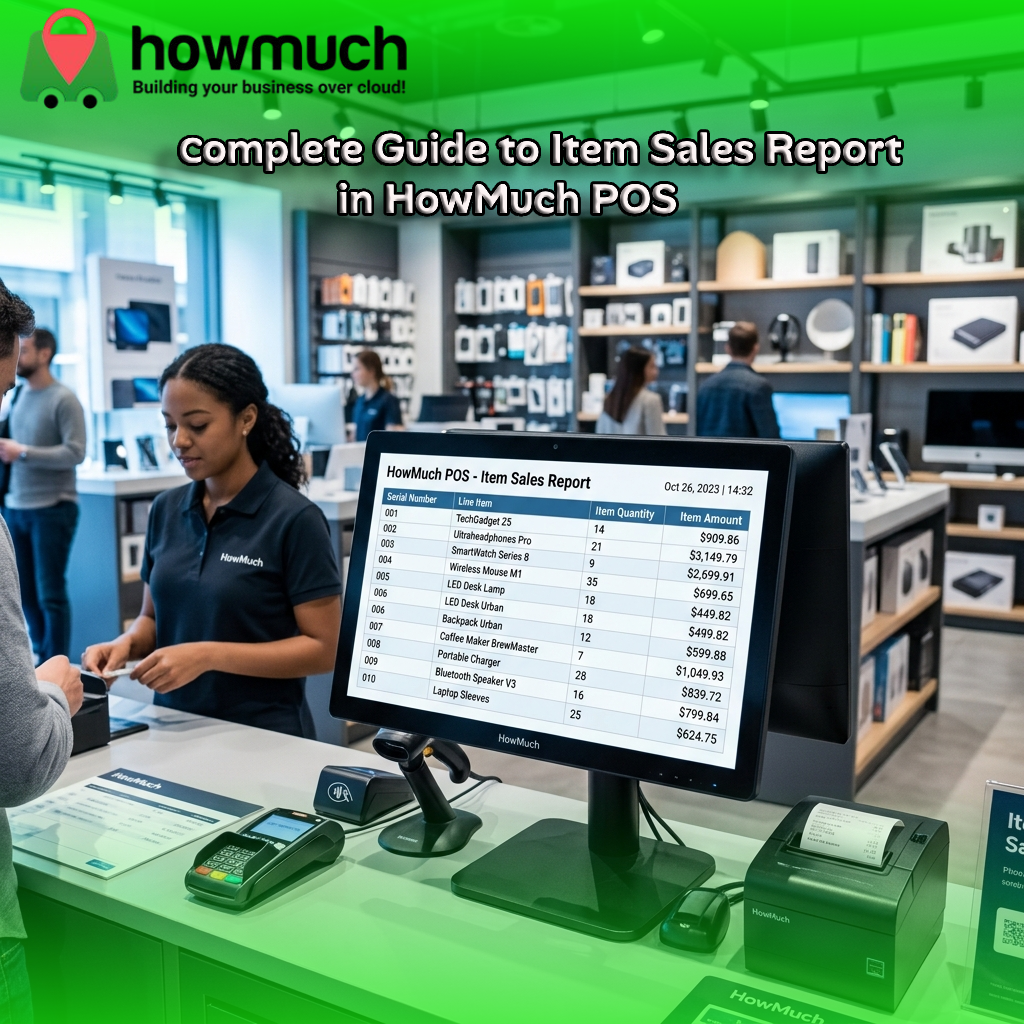
The main table presents one row per product variant, with the following columns:
Column |
Description |
|---|---|
Serial Number |
Auto-incremented row number for easy reference |
Line Item |
Display name of the product variant as it appeared on the order |
Item Quantity |
Total weighted quantity sold across all included orders |
Item Amount |
Total revenue generated by that variant across all included orders |
What Do the Summary Cards Show?
Above the detailed table, four summary cards provide a high-level financial overview of the selected period:
- Total Without Tax — The sum of all item sales before tax
- Total Tax — The total tax collected across all qualifying orders
- Sales Returned — The total value of reimbursements or returns within the date range
- Grand Total — The overall sales total, broken down by payment method (cash, credit card, and others)
The payment method breakdown inside the Grand Total card is especially useful for reconciling end-of-day cash drawers and card terminal records.
What Does the Table Footer Show?
At the bottom of the item table, a totals footer row summarizes the entire report with a comprehensive financial breakdown:
- Total quantity of all items sold
- Total item revenue before tax
- Total tax collected
- Total order-level discounts applied
- Total line item level discounts applied
- Total additional charges collected
- Total reimbursement amount for returned items
- Total unpaid or outstanding amounts
- Grand total (including taxes), broken down by payment method
How to Export or Print the Item Sales Report
HowMuch POS offers four export and print options for the Item Sales Report:
Thermal Printer Print
Sends the report directly to a connected thermal receipt printer. The system auto-detects the printer type and paper width, supporting 80mm and 58mm paper rolls via Bluetooth, USB, and WiFi. The printed output includes the store name, date range, item table, and summary totals in receipt format.
PDF Download
Generates a downloadable, A4-formatted PDF that includes the store logo, store name, selected date range, full item table, and summary totals. For stores operating in Arabic, the PDF uses an embedded Arabic-compatible font. The file is automatically named after the store followed by "ItemSalesReport."
CSV Export
Produces a comma-separated values file suitable for spreadsheet applications like Microsoft Excel or Google Sheets. The file includes serial numbers, item names, quantities, and amounts, with summary rows appended at the end.
A4 Browser Print
Opens a browser window with an HTML-formatted version of the report and triggers the device's native print dialog for standard office printing.
How to Share the Report via Email
Managers who aren't on-site can still receive the Item Sales Report through the built-in email sharing feature. When sharing the report, the system fetches a list of store users who have been granted the "receive email report" permission. The sender selects one or more recipients, and the report is delivered to the selected users via the backend.
This is particularly useful for multi-location retailers or business owners who want visibility into store performance without being physically present.
Multi-Language and RTL Support
The Item Sales Report supports multiple languages, including English, Arabic, French, Urdu, and Danish. For right-to-left languages such as Arabic and Urdu, the system automatically adjusts table column alignments, text directions, and header alignments. PDF exports for Arabic use a specially embedded font to ensure correct character rendering.
How the Item Sales Report Relates to Other HowMuch Reports
The Item Sales Report is one of several reporting tools available within HowMuch POS. While the Expense Report focuses on outgoing costs and shift-based reports cover cash flow at the shift level, the Item Sales Report focuses specifically on what products were sold and in what quantities. This makes it the primary tool for product-level performance analysis and inventory review.
Start Making Smarter Business Decisions with HowMuch POS
The Item Sales Report removes the guesswork from retail operations. You can see which products are moving, which aren't, how much tax you've collected, and how customers are paying all from a single, clearly organized report. Whether you run a single store or multiple locations, these insights help you optimize inventory, reduce waste, and boost revenue.
Frequently Asked Questions
What does the HowMuch POS Item Sales Report show?
The Item Sales Report shows a per-product breakdown of all completed, paid sales within a selected time period. It includes the quantity sold and revenue generated for each product variant, along with summary totals for tax, discounts, returns, and payment methods.
Who can access the Item Sales Report in HowMuch POS?
Only users whose role includes the "allow sales report" permission can access the report. Users without this permission will see a permission denied message with no data visible.
Does the Item Sales Report include returned or refunded items?
Fully reimbursed items are excluded from the report totals. Partially reimbursed items are counted only for the non-reimbursed portion. This ensures returns do not inflate reported sales figures.
Can I export the Item Sales Report from HowMuch POS?
Yes. The report can be exported as a PDF, CSV file, or sent to a thermal or A4 printer. It can also be shared via email with users who have the "receive email report" permission.
Does the Item Sales Report support Arabic or other languages?
Yes. The report supports English, Arabic, French, Urdu, and Danish. Right-to-left languages like Arabic and Urdu receive automatic layout adjustments, and Arabic PDF exports use a specially embedded font for correct character rendering.
What is the difference between the Item Sales Report and shift-based reports in HowMuch POS?
The Item Sales Report focuses on product-level sales data what was sold and in what quantities. Shift-based reports focus on cash flow and operational performance during a specific shift. Both reports serve different analytical purposes within the HowMuch POS system.
0 Comments
Choosing the Best Mobile POS System for Small Businesses